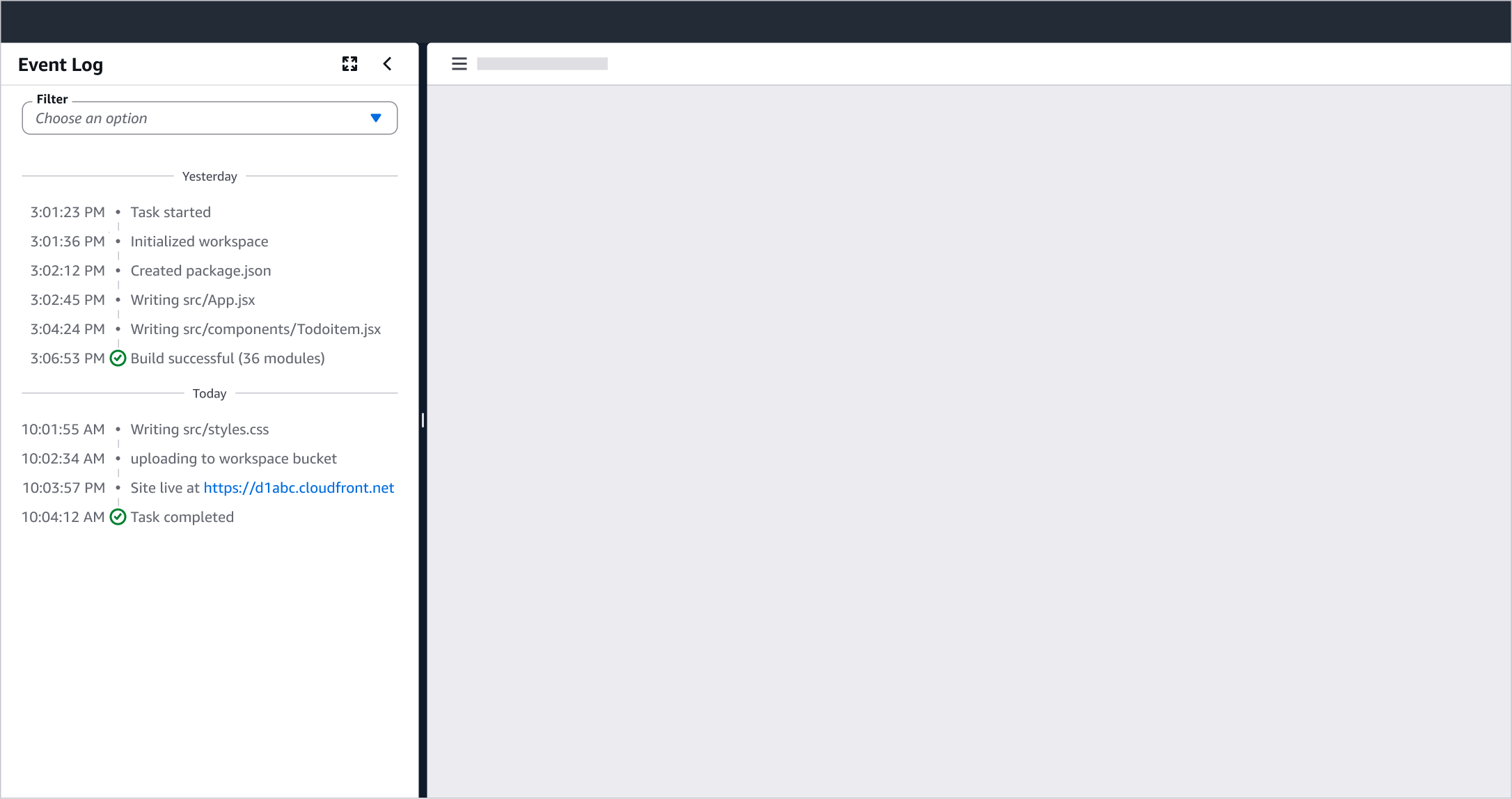
Timeline overview
A pattern for presenting agent events, actions, and conversation milestones in a chronological timeline view.
A pattern for presenting agent events, actions, and conversation milestones in a chronological timeline view.
A timeline view provides context to communicate what happened and the events that occurred in a chronological order. Timestamps, status icons, labels, or participant indicators serve as contextual signals that make events self-explanatory without requiring additional information. Each event reveals what happened at every step, including intermediate actions and decisions.
Specific details from past conversations are difficult to recall, especially across multiple AI sessions over time. Dividers, timestamps, and anchor links keep information visible and recognizable in place. The timeline presents events as a traceable sequence rather than isolated data points. Navigation flows forward and backward through context without requiring memorization of prior states.
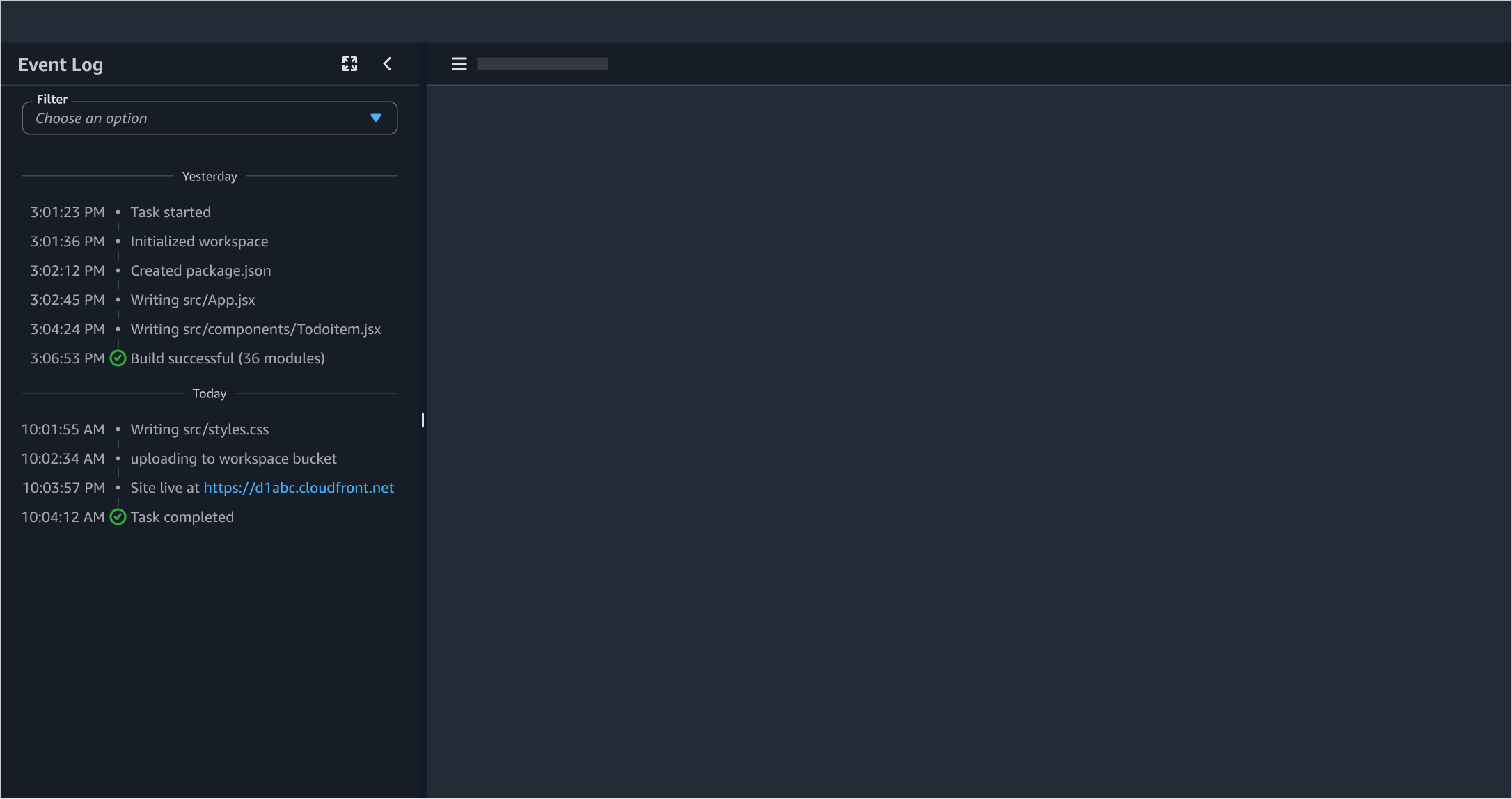
Title of the timeline panel. For example, Event log or Overview.
The timestamp indicates when the event occurred. It is displayed in a fixed-width left column. The timestamp is not required in the timeline when it is already shown within the chat or when the label functions as an anchor link. Follow the guidelines for Timestamps.
The icon serves as a visual indicator of the event type within Steps. Icons differentiate between events at distinct points in the timeline and provide additional context about each event.
For example, the success icon shows when the agent is running correctly, or the process has finished without errors.
This can be anchor links or plain text depending on the context. For example, an anchor link can navigate the user back to the corresponding message in the chat overview.
Use divider with label to group events by day when activity spans multiple dates. Follows guidance in Timestamps, displaying Today, Yesterday, or an absolute date.
A set of filters supports narrowing events by date or tags.
For example, a Select filter can be used at the top of the timeline view when you need to filter the event list by category or type.
Use event log timeline to display a chronological log of events, like agent event trails, deployment logs, or system activity feeds. For example, an agent event log displays the details of each step and activity that an agent performed.
Timelines provide an overview of a conversation. For example, a long, task-oriented agent-user conversation generates important events and metadata. An overview of such a conversation where each event item in the timeline is an anchor link can help users browse through the exchange and navigate to any specific message via the anchor link.
Use sentence case, but continue to capitalize proper nouns and brand names correctly in context.
Use end punctuation, except in headers and buttons. Don’t use exclamation points.
Use present-tense verbs and active voice.
Don't use please, thank you, ellipsis (...), ampersand (&), e.g., i.e., or etc. in writing.
Avoid directional language.
For example: use previous not above, use following not below.
Use device-independent language.
For example: use choose or select not click.
Keep labels concise and action-oriented. Use past tense to describe what happened.
For example: Use Created environment: CloudAppConfig.
For user-initiated actions, start with a verb that describes what the user did.
For example: Use Provided preferences.
In the chat overview use case, labels are anchor links that navigate back to the corresponding message in the conversation. Write them to clearly identify which message they point to.
Follow the guidelines on alternative text and Accessible Rich Internet Applications (ARIA) regions for each component.
Make sure to define ARIA labels aligned with the language context of your application.
Don't add unnecessary markup for roles and landmarks. Follow the guidelines for each component.
Provide keyboard functionality to all available content in a logical and predictable order. The flow of information should make sense.