Variables
A pattern for using variables within structured content such as prompt templates, code snippets, and text with predefined formats.
A pattern for using variables within structured content such as prompt templates, code snippets, and text with predefined formats.
Variables are bits of information displayed inline within structured content like text or prompt templates. They can be plain text variables, interactive variables, or read-only variables.
Variables are visually distinguished from their surrounding content by visual style, consistent syntax, or both. They can be displayed in read only or interactive states. Interactive variables should use clear, descriptive names to help users determine the type of input that is expected. For more about writing and displaying variables, see writing guidelines.
Variables are essential building blocks of templates, enabling customization while preserving the template's structure. For example, templates used in generative AI workflows, where models are sensitive to word order and phrasing, variables allow users to modify specific elements without compromising the template's effectiveness. This controlled customization ensures consistent outputs, reduces errors, and enables templates to be reused across different contexts.
There are three distinct types of variables: Plain text variables, interactive variables, and read-only variables. Each type serves a specific purpose and offers unique characteristics in how they are represented and interacted with in an interface. Understanding these variable types helps create dynamic, interactive content effectively.
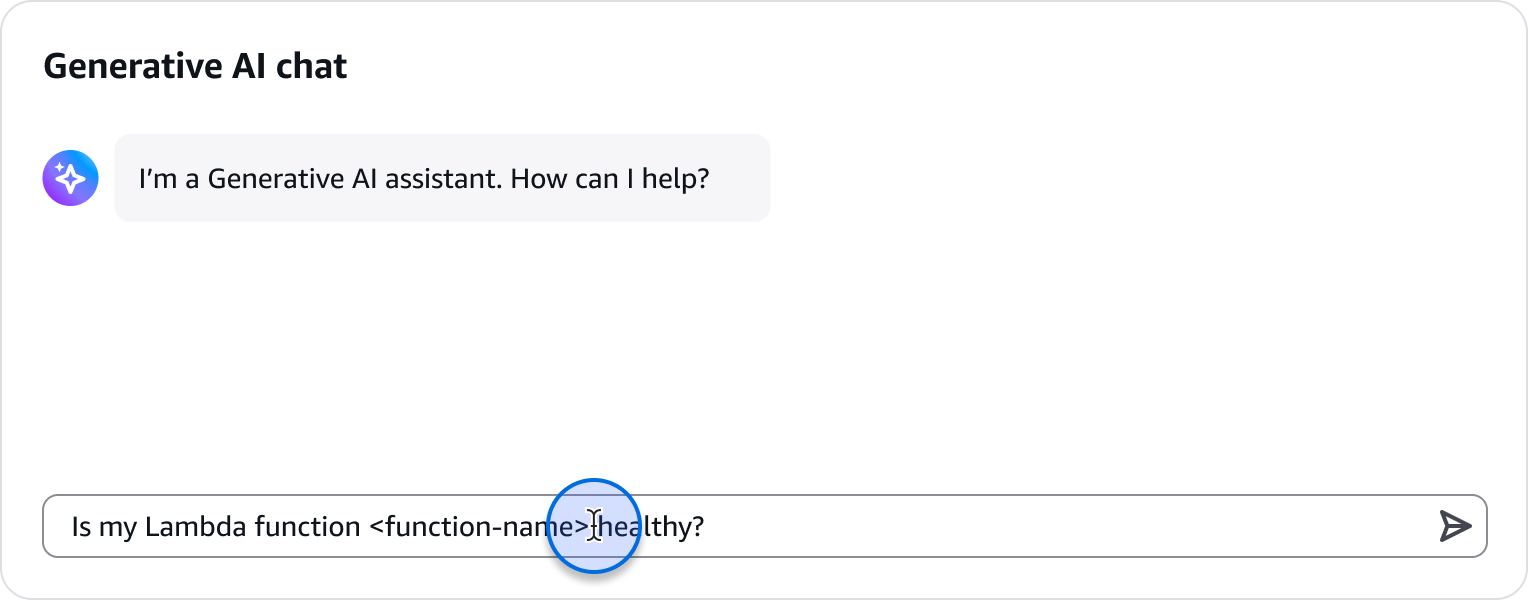
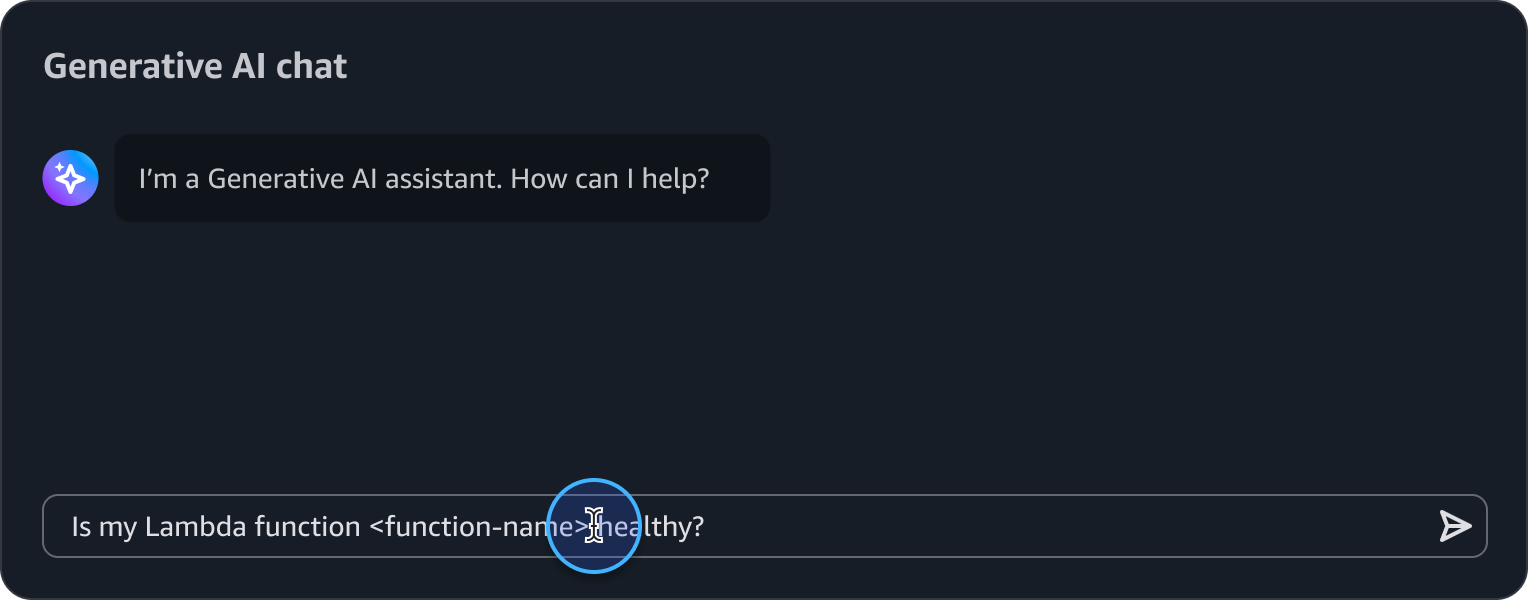
Plain text variables are stateless variables that can be edited directly through standard text editing, denoted by angle brackets <>. In contexts where angle brackets might be confusing, use alternative syntax. They enable users to edit text associated with the variable directly within the form field they are displayed in. For example, in generative AI chat, a user can take advantage of a prompt template and quickly edit the variable to help generate their intended output before sending the prompt.
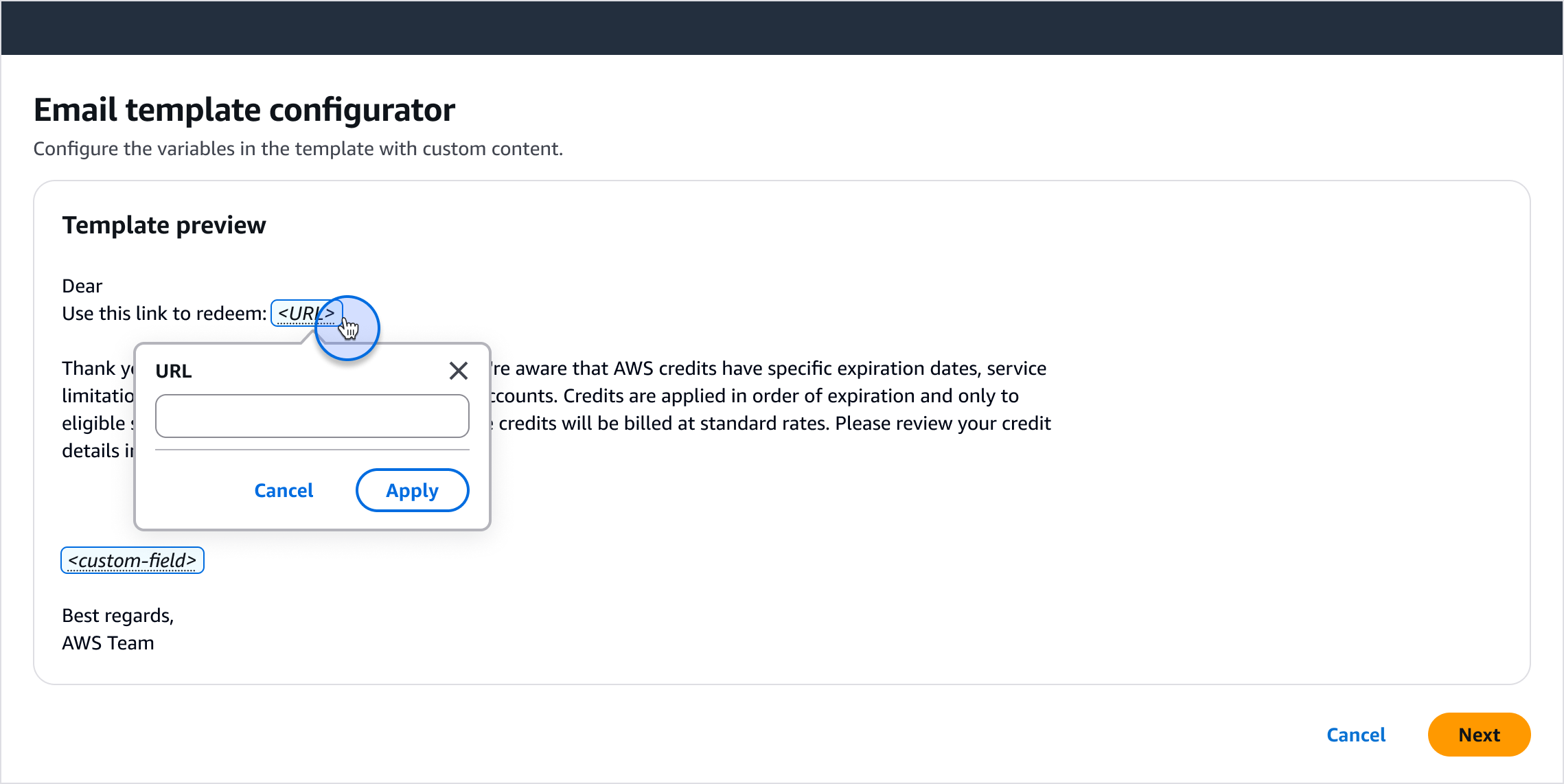
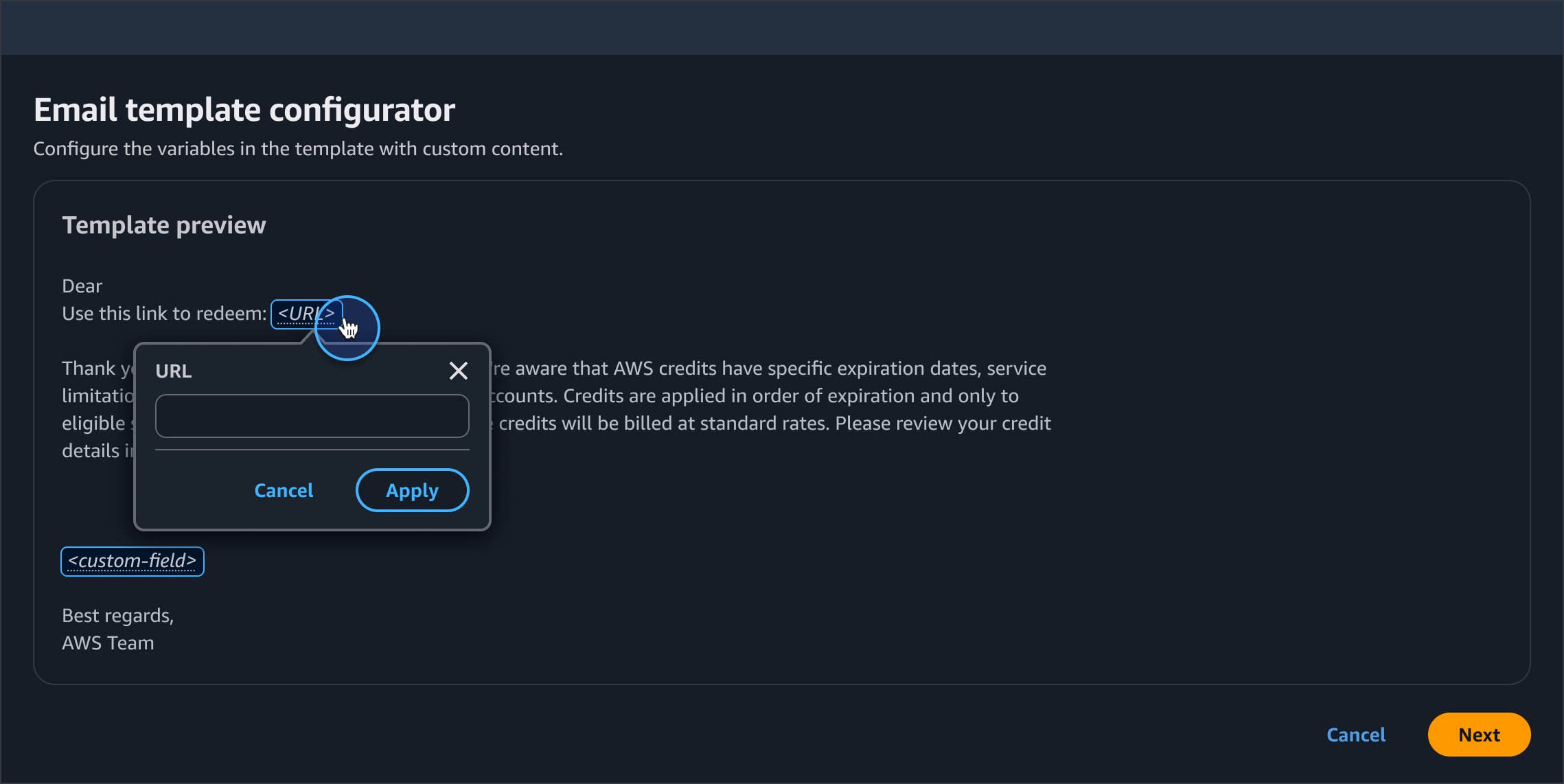
Interactive variables utilize the inline token to provide distinct visual style and interactions when placed in context of surrounding content.
This kind of interactive variable triggers a popover where users can edit the variables through a simple form field or selection without navigating to a separate area within the UI. This kind of interaction is best suited for variables where a single form field or selection are required.
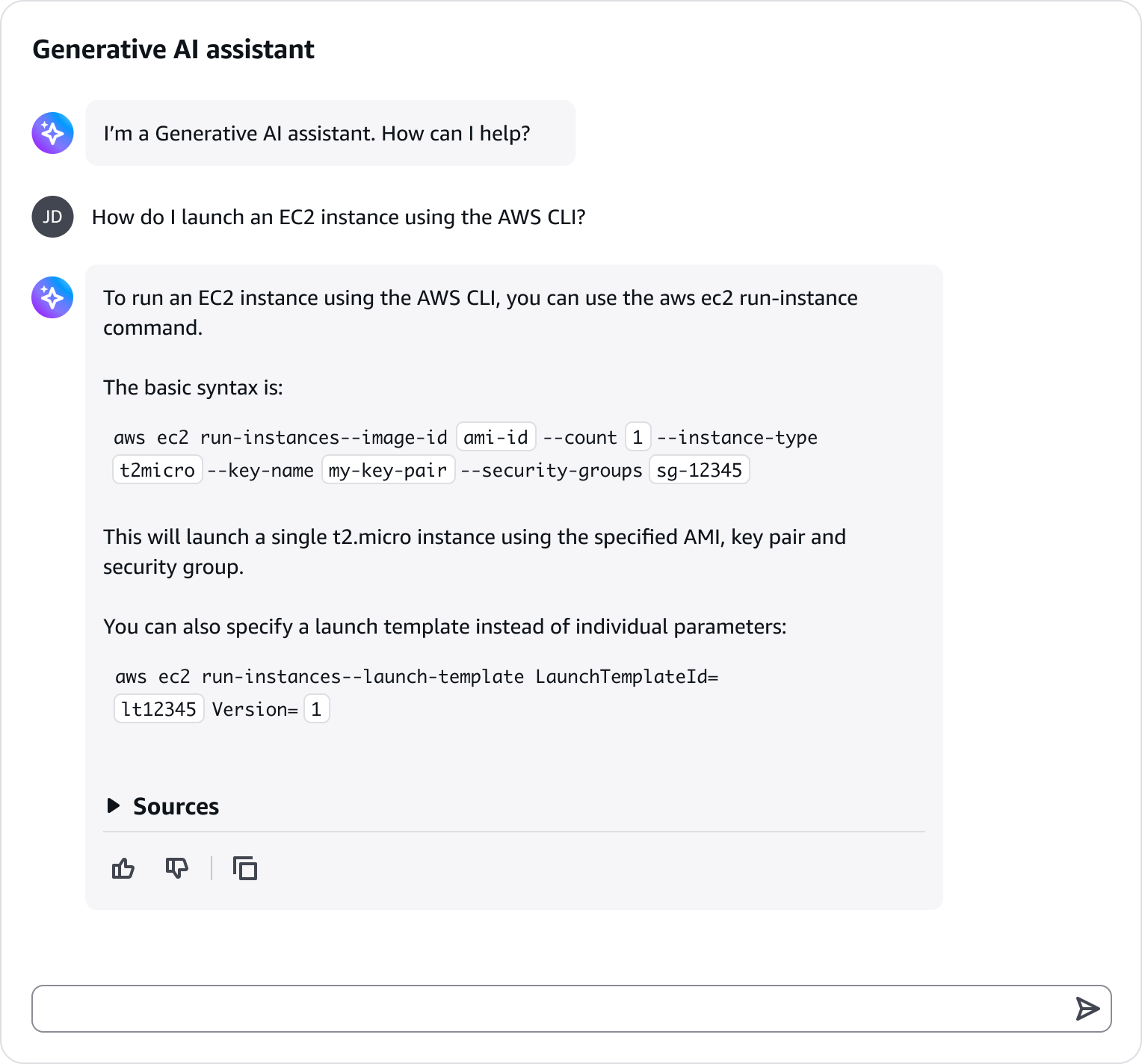
Read-only variables are used to highlight bits of information from surrounding content. For example, in a code snippet, highlighting the key parameters show users where specific values can be edited when using the snippet.
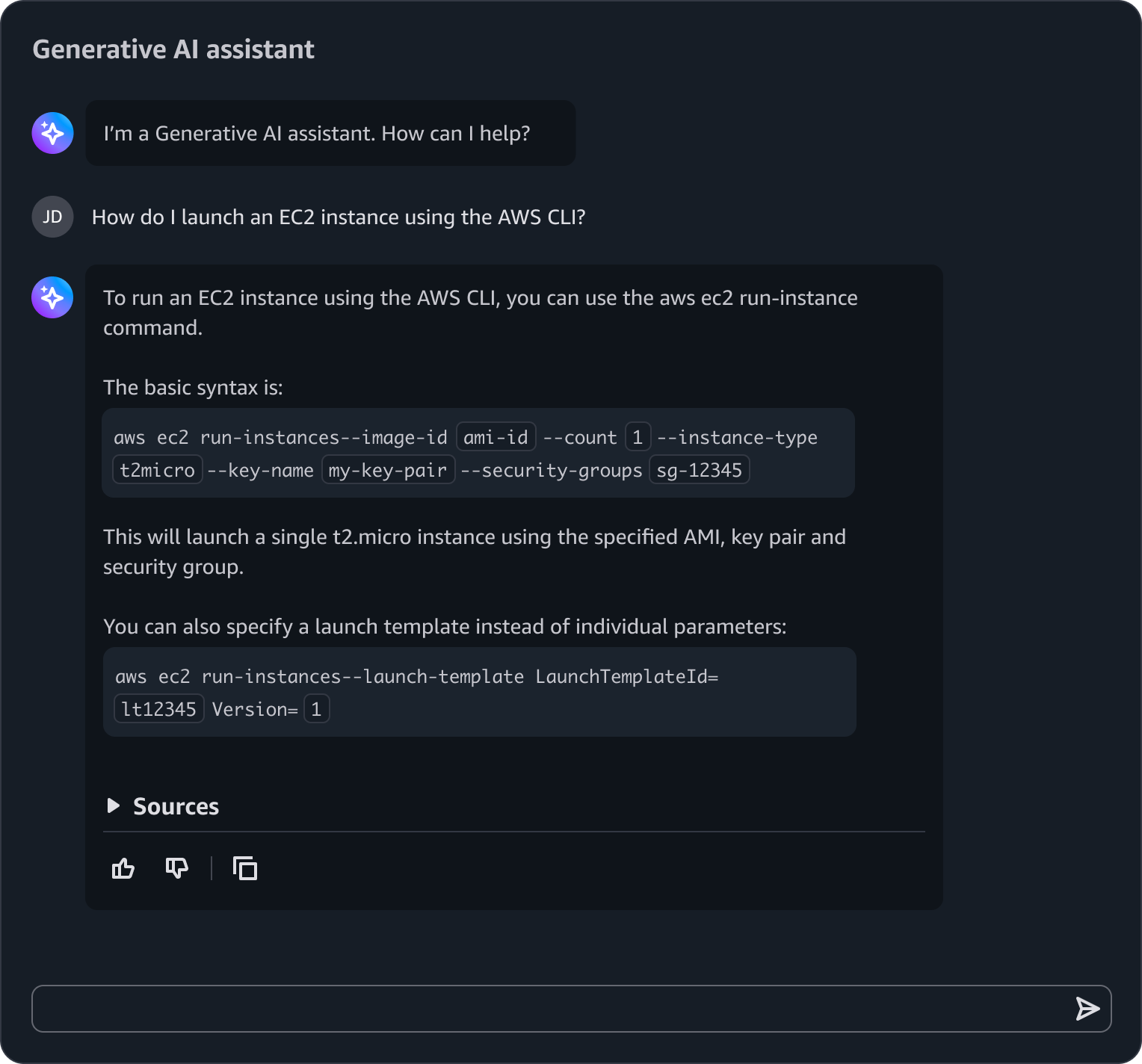
By default inline token variables should use angle brackets <> and italic text to indicate placeholder within variable text. Use alternative syntax when angle brackets could cause confusion, such as in code snippets.
Use angle brackets: <variable-name>
Use descriptive, hyphenated names: <service-name>, <region-name>
Do not use spaces within variable names: <database-name> not <database name>
For example, "List EC2 instances in <region> created before <date>"
When working with code snippets or contexts where angle brackets might be confusing, use the appropriate syntax for that context. For example, View metrics for ${service} in ${region}.
Follow the syntax required by the code or template language
Common formats include: ${variable}, $variable, or other language-specific syntax
When an inline variable has not yet been edited by a user, it should be displayed as italic text. This formatting communicates a familiar pattern to users that there is placeholder text within a variable. For example, "Analyze potential cost savings for my <service-name> in region <region>."
Once a user selects or enters a value for an inline variable, the value should be displayed as regular styled text. For example, "Analyze potential cost savings for my EC2 in region us-east-2."
Use sentence case, but continue to capitalize proper nouns and brand names correctly in context.
Use end punctuation, except in headers and buttons. Don’t use exclamation points.
Use present-tense verbs and active voice.
Don't use please, thank you, ellipsis (...), ampersand (&), e.g., i.e., or etc. in writing.
Avoid directional language.
For example: use previous not above, use following not below.
Use device-independent language.
For example: use choose or select not click.
Follow the guidelines on alternative text and Accessible Rich Internet Applications (ARIA) regions for each component.
Make sure to define ARIA labels aligned with the language context of your application.
Don't add unnecessary markup for roles and landmarks. Follow the guidelines for each component.
Provide keyboard functionality to all available content in a logical and predictable order. The flow of information should make sense.